Here is what the Parent app lets you do for each child, and what SafeCir needs on the child's phone to do it.
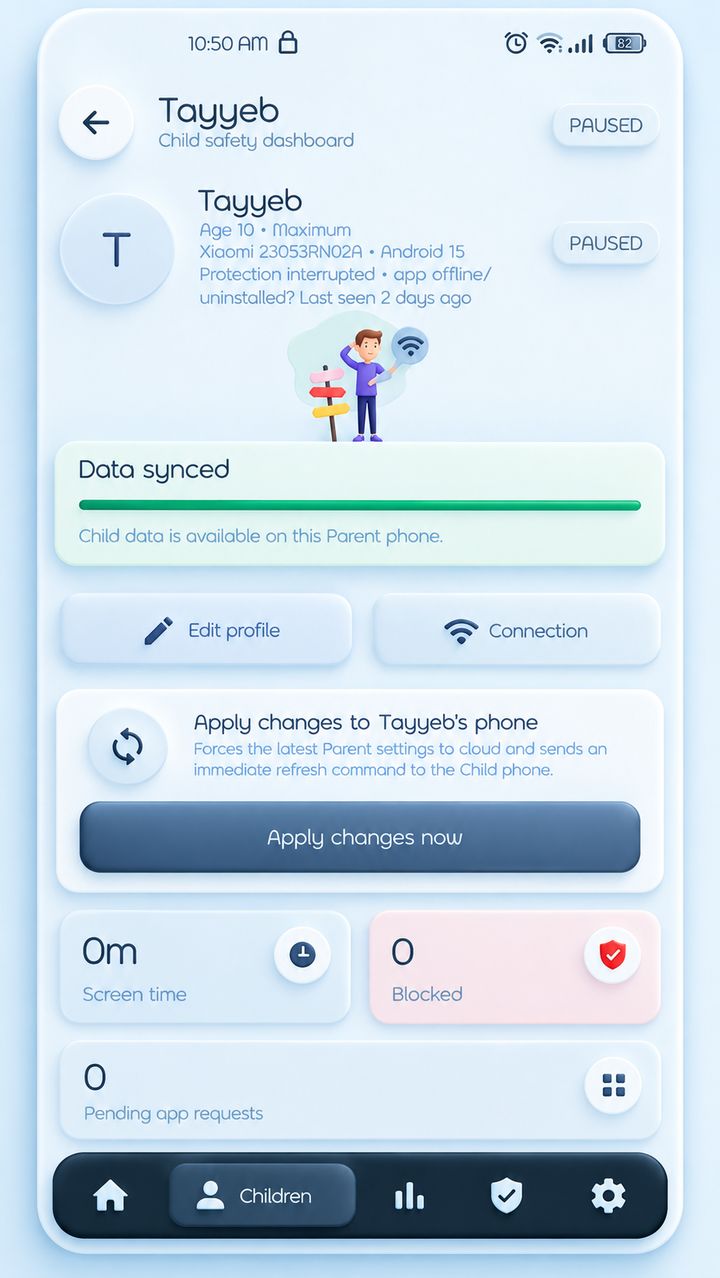
01 — Screen TimeCheck screen time for each child.
Each child has their own page. It shows the child's name and phone, whether protection is running, and tiles for screen time, blocked attempts and pending app requests.For example, check the screen time tile before you talk to your child about phone use.
 02 — Apps & Approvals
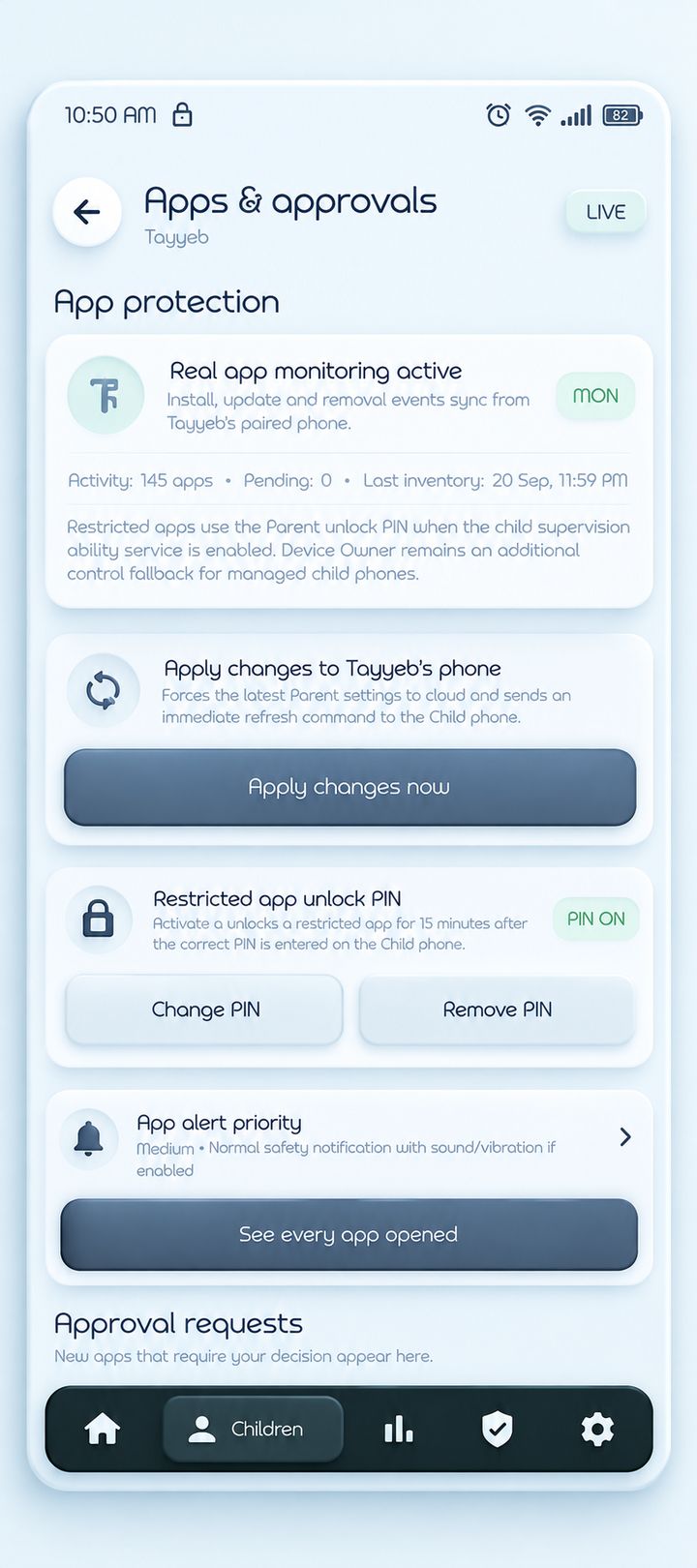
Which apps are on your child's phone?
You get a list of every app installed on the child's phone. When a new app appears, it waits under Approval requests for your decision. Restricted apps can be opened for 15 minutes when the PIN is entered on the child's phone.For example, a newly installed app waits for your decision.
 03 — Web Protection
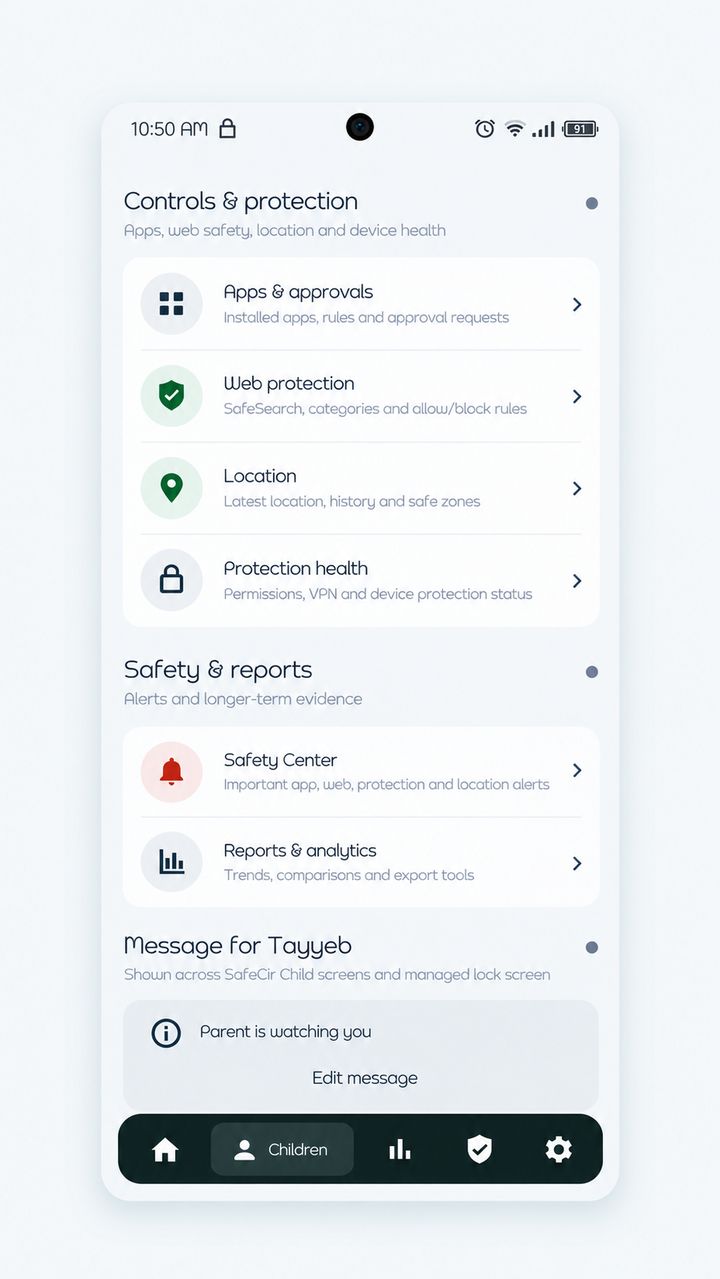
Stop unsafe websites from opening.
Turn on SafeSearch, block whole categories such as adult content or gambling, or add single websites to your own allow and block lists.For example, block adult sites and gambling, but allow your child's school website.
 04 — Location & Safe Zones
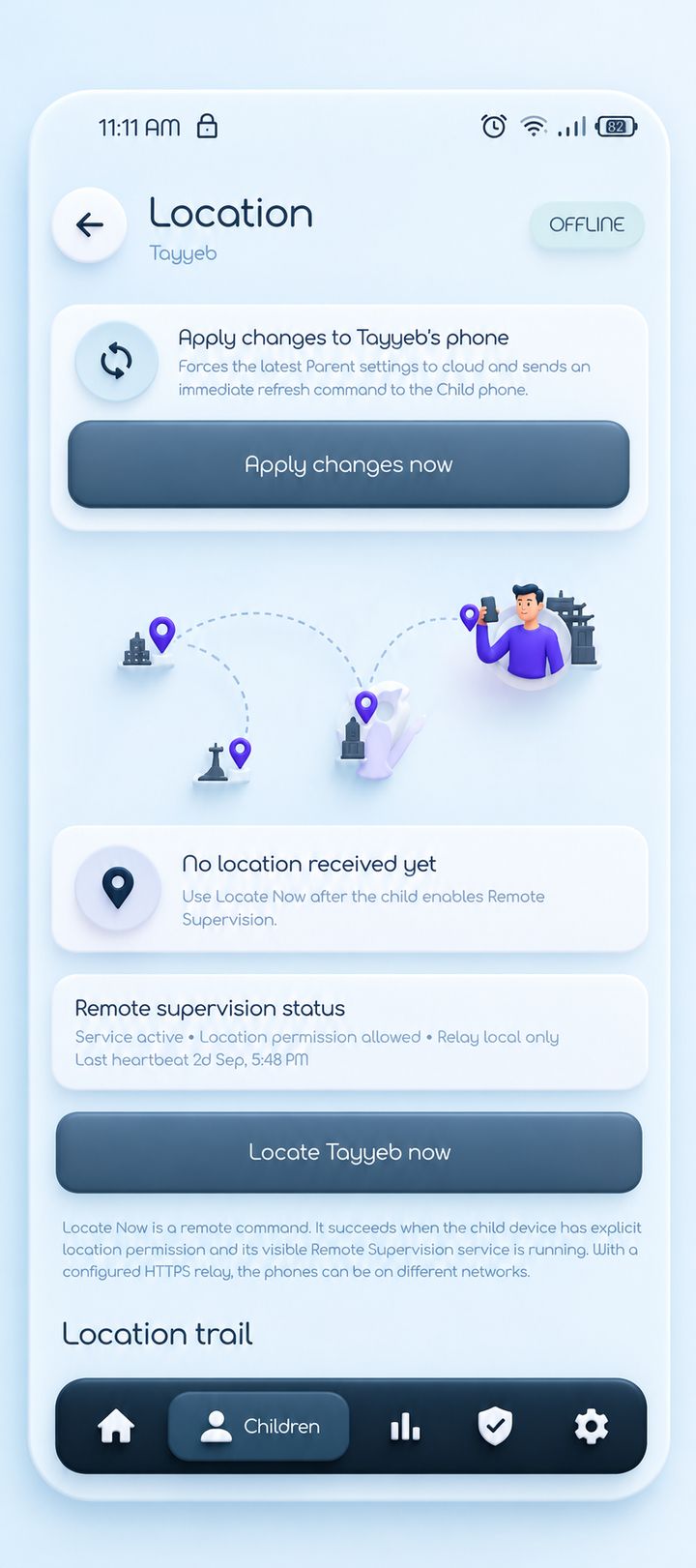
Where is your child right now?
Use Locate now to ask your child's phone where it is. The screen also keeps a location trail and shows whether Remote Supervision is running on the child's phone.For example, press Locate now when you want to check where the phone is.
 05 — Safety Center
The most important alerts come first.
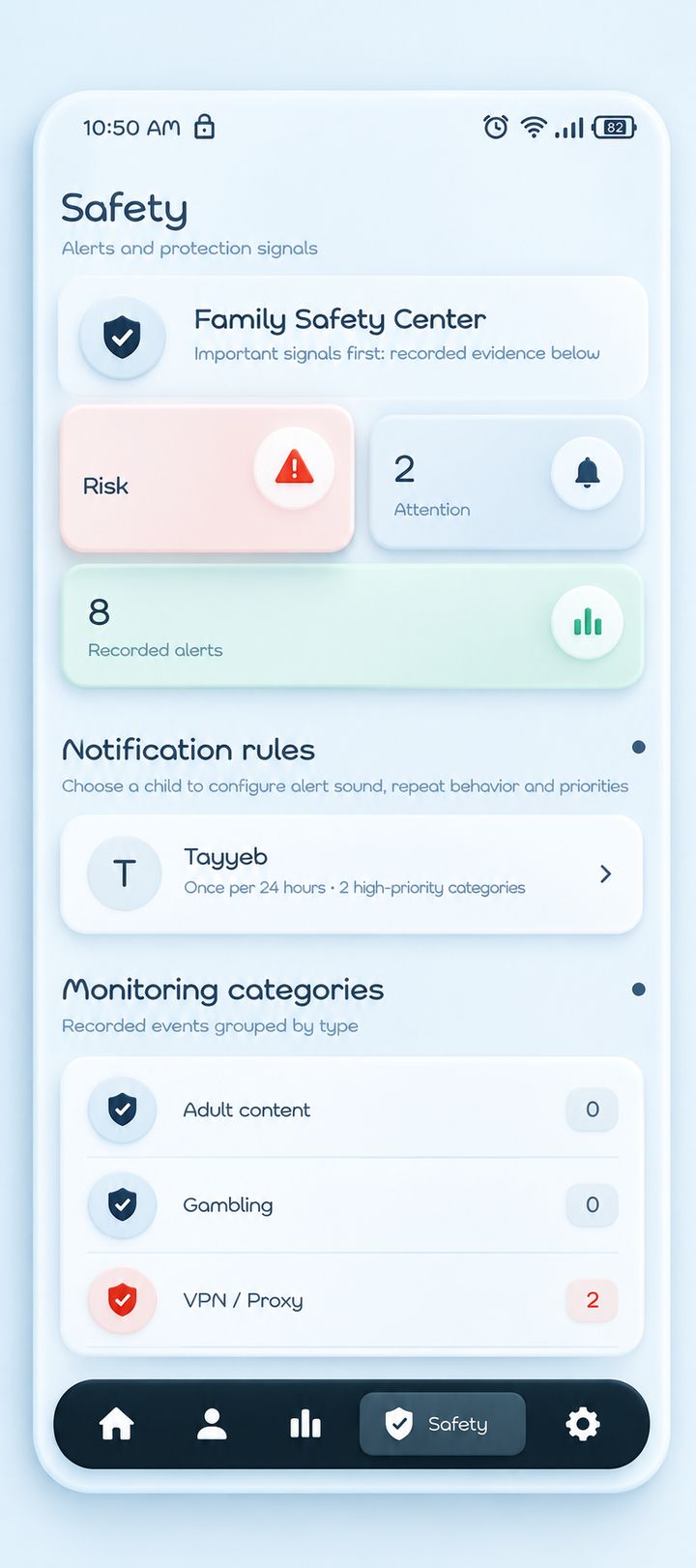
The Safety Center puts the most important signals first, then the recorded ones. Alerts are counted as Risk, Attention and Recorded, and grouped by type, such as adult content, gambling and VPN or proxy.For example, one warning list instead of checking apps, web and location separately.
 06 — Family Activity
What happened this week.
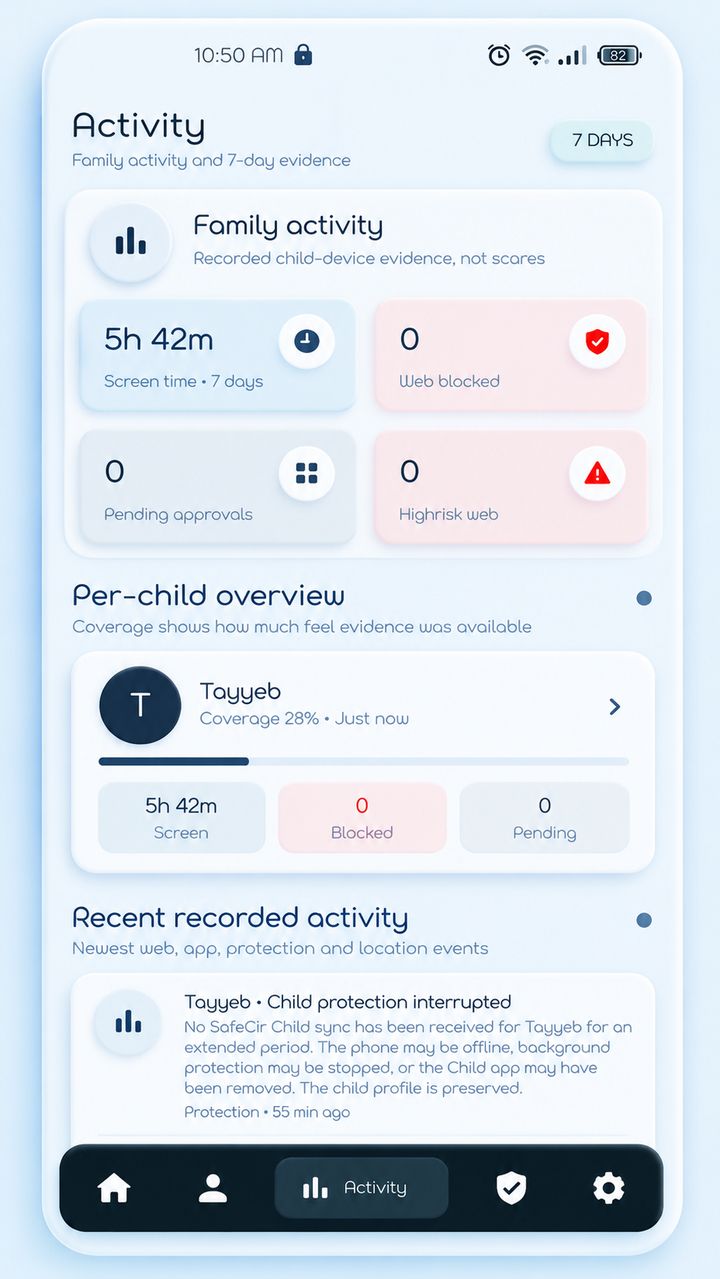
The activity page covers the last 7 days: screen time, blocked attempts and pending requests for each child.For example, compare this week's screen time and blocked attempts at a glance.
 07 — Multiple Parent Access
Add the other parent too.
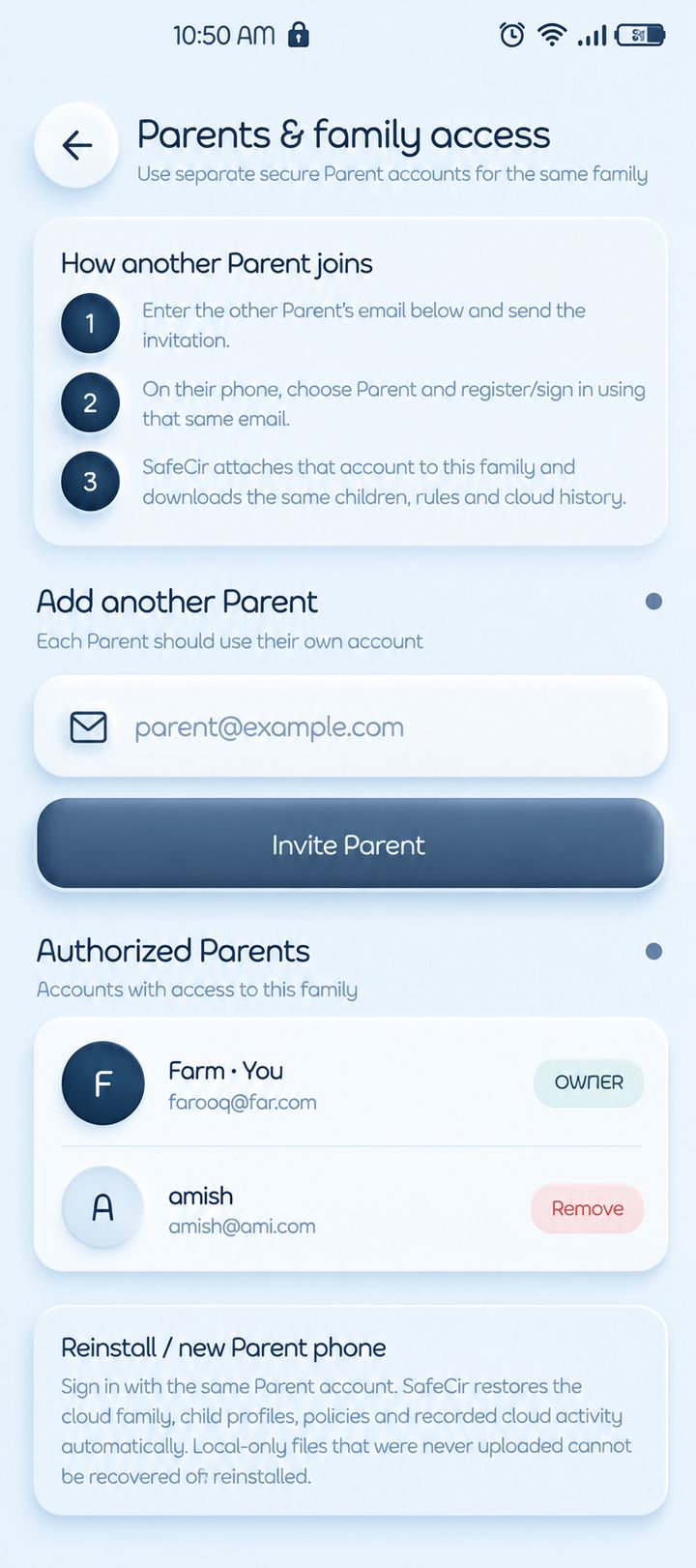
Invite the other parent by email. They sign in with their own account and see the same child profiles and rules you do.For example, mother and father both manage the same child profile.
 08 — Remote Supervision
Change a rule while you are at work.
Change a setting, then tap Apply changes now. The Parent app saves it to the cloud and sends your child's phone a refresh command.For example, change a rule from your office and it reaches your child's phone.
 SafeCir